
Create a contract
Contracts is the home page. The primary button is New contract. You need a member account, and an admin needs to have added a contract type first. With no types, the dialog says “There are no contract types yet. Ask an admin to add one on the Contract types page.”
Creating a contract. Captions are on the picture. There is no voiceover and no music.
Transcript: Contracts is the home page. New contract starts a signed contract. Choose a contract type. That type decides which fields the form asks for. Name the contract, then add the other party. Save creates the counterparty. Tick No fixed end date when the contract does not expire. A file is required. Create contract stays unavailable until you choose one. Create contract saves the record and version 1 of the file. Contract added. The new contract is a row on the grid. Open it to see the file.
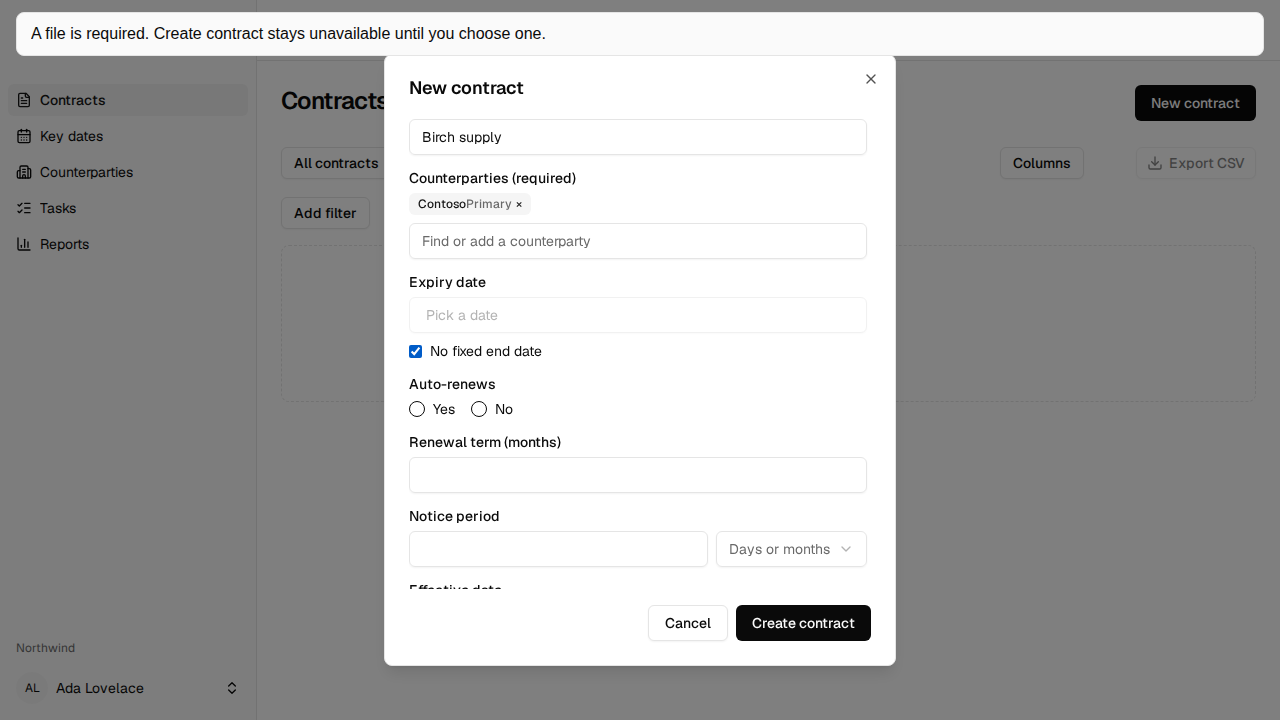
- Choose New contract. The dialog title is New contract.
- Choose Contract type. The type’s fields appear once you have chosen one.
- Choose the contract file. Drop one file on “Drop the contract file here, or choose it.”, or choose Choose file. Create contract stays unavailable until a file is chosen.
- You are listed as an owner, with “You’re an owner because you’re adding this contract.”
- Enter Name.
- Add at least one counterparty. Typing a name that is not already here offers
Add "{text}". That opens Add counterparty, with Legal name filled in. The other details are optional. Save creates the counterparty and selects it. The first one is primary. When there is more than one, Make primary is on the other pills. - Enter Expiry date, or tick No fixed end date.
- Fill Auto-renews, Notice period, and any other fields the type asks for. Then choose Create contract.
The contract and its first document version are saved together. The file you chose is Version 1. A toast says “Contract added.”
Fields in the dialog
Section titled “Fields in the dialog”After the type and the file, the form shows Name, Counterparties, Expiry date with No fixed end date, Auto-renews, Notice period, then the dates and values the type uses: Effective date, Signed date, Contract value, Our entity, and External reference. Custom fields for that type come after those. A required label ends in “ (required)“.
Contract type cannot be changed after the contract is saved. On the record it is a plain box, not a disabled field.
Autofill
Section titled “Autofill”When the chosen type has Autofill from document and the workspace has AI autofill on, the file control says “PDF, DOCX, DOC or image, up to 20 MB.” and “We’ll read the document and suggest fields. Nothing is saved until you click Create contract.” Autofill explains the suggestions. When autofill is off, those lines are omitted and the chooser is not limited to those types.
If it does not work
Section titled “If it does not work”- “Choose the contract file.” means no file is chosen yet.
- “Enter a contract name.” means the name was empty. Names can be up to 200 characters, with no line breaks or tabs.
- “Add at least one counterparty.” means the save had none.
- “Enter an expiry date, or tick No fixed end date.” means an end date was required and empty.
- “Enter a renewal term in whole months. Contracts that auto-renew need one.” means Auto-renews is Yes and the term is missing.
- “{field} is required for this contract type.” means a required field was empty.
- A failed upload does not leave a contract with no document. Nothing is saved until the file is accepted.
The default upload limit is 50 MB. A larger file says “That file is larger than 50 MB. Upload a smaller one.” An admin can set a different limit. 20 MB is only the autofill reading limit, not the upload limit.