
Saved views
A saved view keeps the search text, filters, sort, and columns on the contract grid. A shared view does not show you a contract you cannot open.
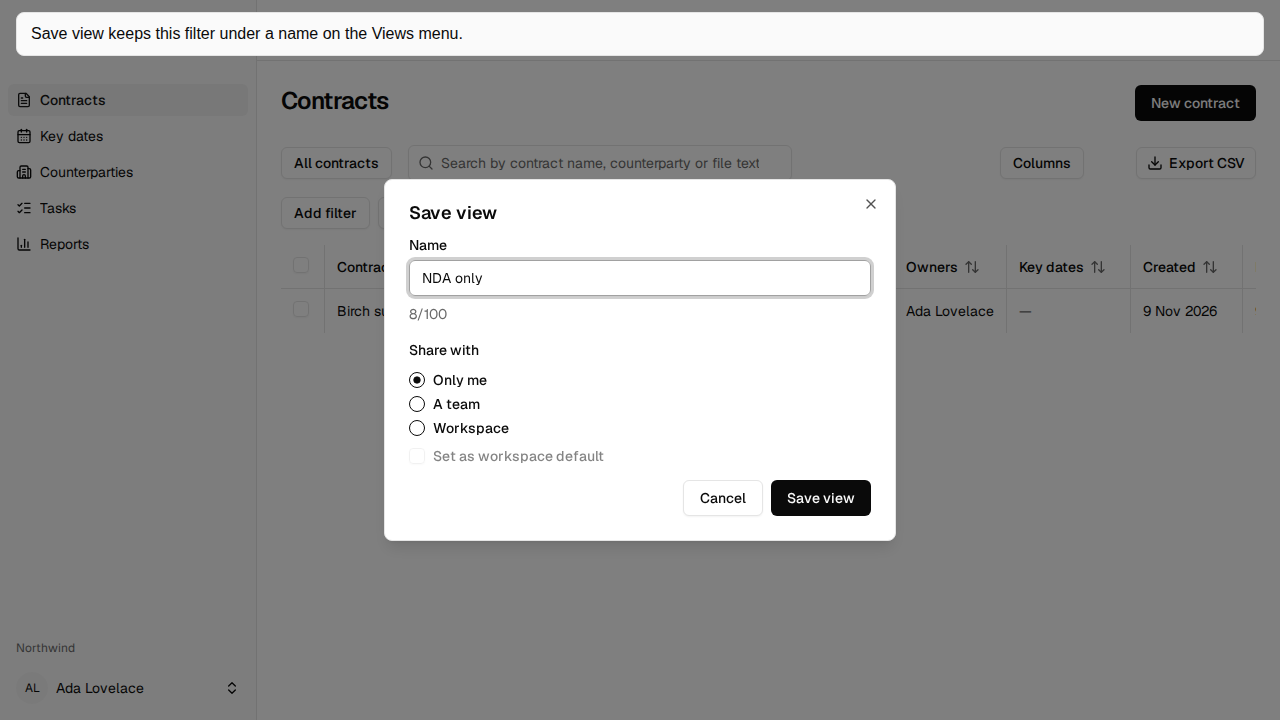
Save a view
Section titled “Save a view”- Set the search, filters, sort, and columns.
- Choose Views, then Save view….
- Type a name, at most 100 characters. The counter reads “{n}/100”.
- Under Share with, choose Only me, A team, or Workspace. A team asks you to choose the team.
- Set as workspace default is shown to an admin, and it can be ticked only for a Workspace share. Changing the share clears it.
- Choose Save view.
Open, rename, or delete
Section titled “Open, rename, or delete”Views is first in the toolbar. It shows the current view’s name, or “All contracts” when none is selected. My views, Team, and Workspace group the views you can read. The current view has a check. The workspace default is marked Default. All contracts leaves the view.
To rename or delete a view you own, choose Rename / Delete. Delete asks Delete view "{name}"? and says “This can’t be undone.” To keep edits to a view you own, choose Save.
Once filters, sort, or columns differ from the saved view, muted text by the button says “Unsaved changes”.
Only the owner can rename, change, or delete a view. Someone else can open it. Only an admin can set the workspace default. The default opens for someone who has not chosen a view.
If a field used by a saved filter has been deleted, the view still opens. A muted note says “1 filter was removed because its field no longer exists.” When a member is removed, their personal views are deleted and shared views move to the admin who removed them.