
Bulk actions
Select contracts with the checkbox at the left of Contract name. The header checkbox is “Select all on this page”. A row checkbox is “Select {contract name}”. The header selects every row on this page, not every row in the view.
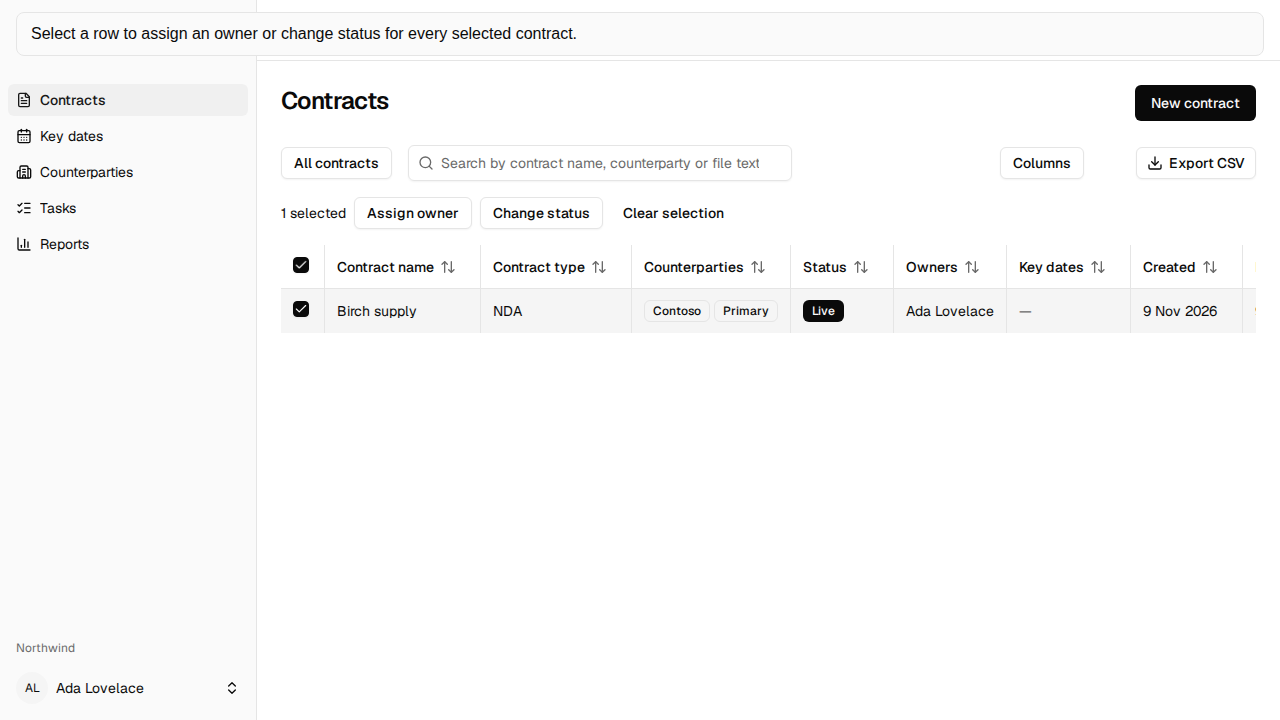
When anything is selected, the filter pills are replaced by a bar: “{n} selected”, Assign owner, Change status, and Clear selection. On a narrow screen that bar sticks to the bottom of the screen.
Apply a change
Section titled “Apply a change”Assign owner and Change status each open a dialog with one labelled list and Apply.
The toast reads “No contracts updated.” when none change, “1 contract updated.” when one does, and “{n} contracts updated.” from two up, then “{n} skipped.” A contract that already had the chosen owner or status counts as updated, so the two numbers add up to the selection.
View details opens a sheet titled “Skipped contracts”. Each skipped contract is listed by name, with the reason in muted text.
- “Not found” means the contract is missing, in another workspace, or not visible to you. The sheet does not show its name.
- “No permission” means you can see the contract but you cannot make this change.
- “Set a future expiry date, or tick No fixed end date, before setting this contract to Live.” is the same sentence a single status change uses.
- “Choose an active member.” means the new owner is not an active member. That refusal applies to the whole request, before any contract changes. It is shown under Owner.
- “Choose up to {n} options.” means the contract is already at its owner limit.
If the update fails for another reason, the dialog stays open and the toast says “The contracts couldn’t be updated.” with Try again.